

Start selling Discord roles
Connect your Discord server and prepare benefit roles, payouts, and products.
Last updated:
A product that grants only Discord roles can be prepared through Discord settings and product creation in Moneta. It does not require a game-server Agent.
Before you begin
- Have a Discord server that you can manage.
- Create the role you want to grant to buyers.
- Check which channels and permissions that role provides.
Connect your server
Log in to Moneta and select your server from the server list. If the Bot has not been added, follow the on-screen instructions to add it.
Check Bot permissions and role order
In Discord's server settings, give the Moneta Bot the Manage Roles permission and move its role above the benefit role.
You cannot select @everyone or a role managed by another integration as a product's role. If a role is unavailable, see role troubleshooting.
Set up payouts
Start connecting Stripe from the dashboard's settings. Enter your business information, identity verification details, and bank account in Stripe.
When you return to Moneta, check the status of payment acceptance and payouts. If more information is required, continue from the settings page.
Create a product
Open the selected server's products page and add a product.
- Enter a product name and describe the benefits buyers will receive.
- Choose the benefit type and the Discord role to grant.
- Set the price and choose a one-time purchase or recurring billing.
- For recurring billing, set the renewal interval.
- Choose visibility and review the settings before saving.
See Product pricing, billing intervals, and benefit validity for the meaning of each billing field.
One product can grant multiple roles, such as a supporter badge and a private-channel role. Configure channel permissions in Discord.
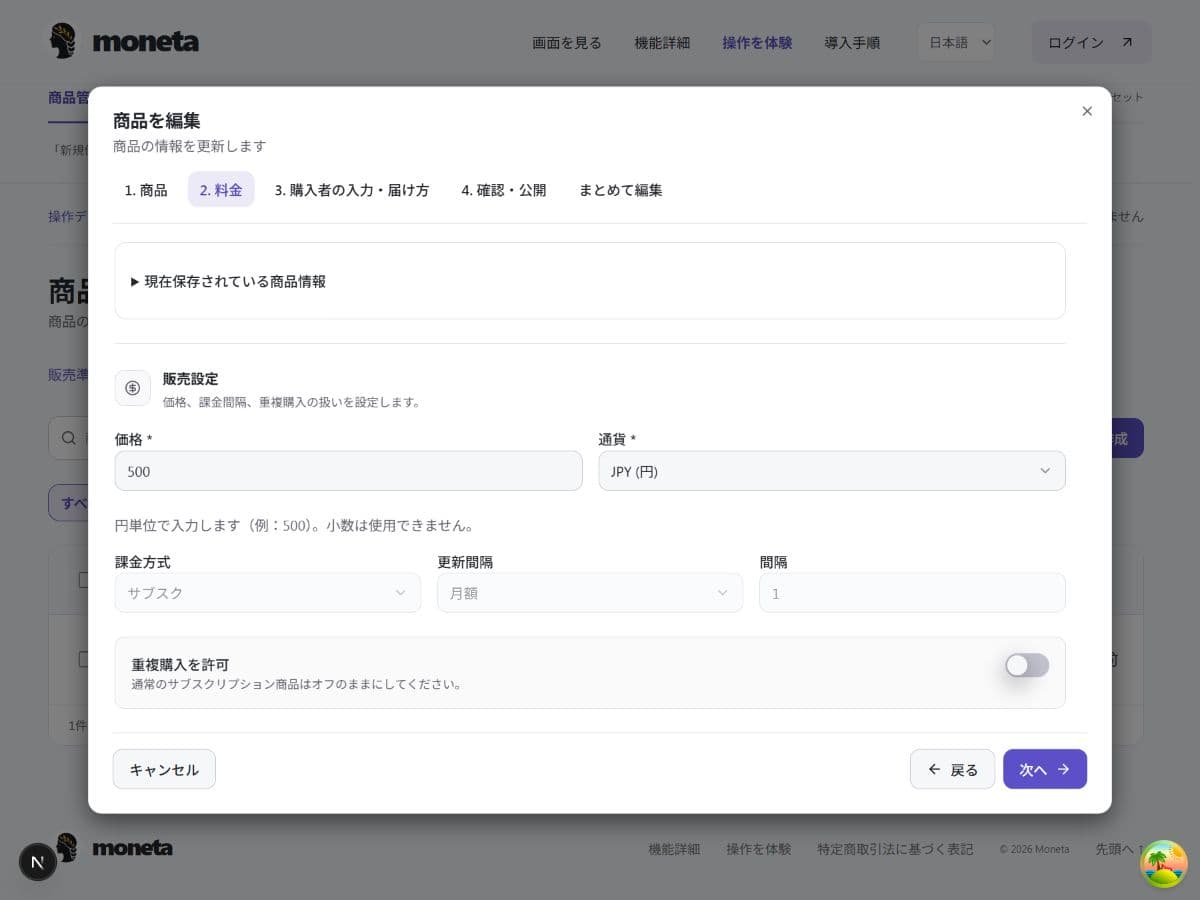
This is a sample screen in Japanese. Field positions and displayed options depend on the product and its settings.
Check visibility
Public website + Bot lists the product in the store. Direct URL only makes it accessible through a shared purchase link. After saving, check the product name, benefits, price, and renewal interval that buyers will see.
Available visibility settings are “Web + Bot”, “Bot only”, “Direct URL only”, and “Hidden”. Select the sales channel you intend to use; keep products hidden while preparing them.
You can try the workflow in the public demo without making a real payment.
Check delivery after a purchase
For real sales, open purchases and processing history in the dashboard. Check each stage separately.
| What to check | Where to check |
|---|---|
| Has payment completed? | The purchase's payment status |
| Is the benefit active? | The benefit status and validity period |
| Has the role been granted? | Discord delivery history and the buyer's roles in Discord |
For recurring products, also check what happens when renewal is stopped and when the benefit expires. If a role has not arrived, see help.
Once setup and checks are complete, share the store URL or purchase URL with buyers.